Editor Menu
Click on the triple-line icon in the app bar to open the Editor Menu.
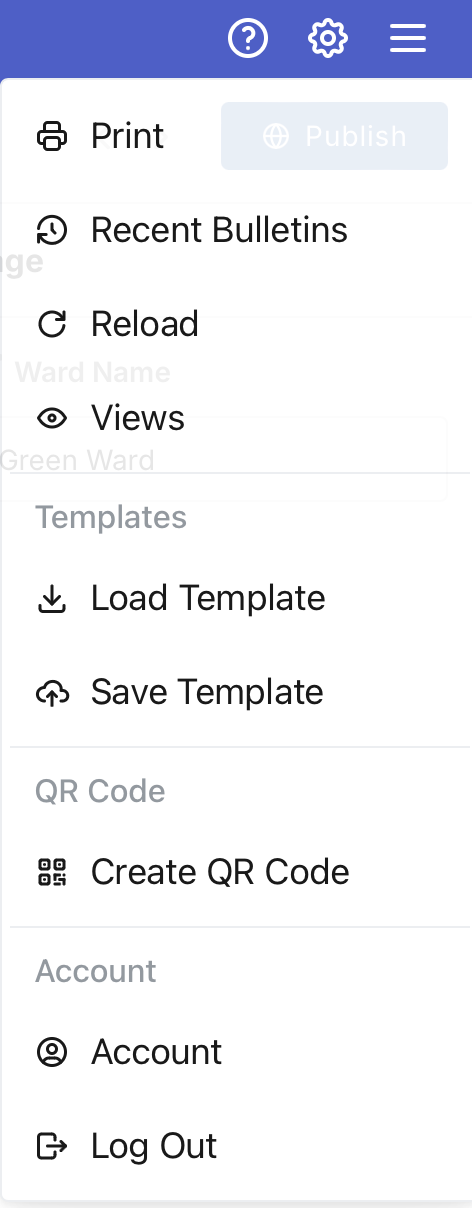
Select Print to print the ward bulletin.
You can also print by using the web browser's Print function. Press control-P (Windows) or command-P (MacOS) or select Print from the File menu.
Make sure Landscape orientation is selected to print the correct format.
Recent Bulletins
Select Recent Bulletins to show recent bulletins. Select one to use as the bulletin you want to edit and publish.
Reload
Select Reload to load and edit the current published bulletin. This is useful if you edit the bulletin on multiple devices or you have multiple people editing the bulletin.
Views
Select View to see how many times the bulletin has been viewed for the past several weeks.
Load Template
You can save and load templates so you can reuse parts of the bulletin in other bulletins. When you load a template only the sections that were saved in the template will overwrite or be added to the current bulletin. All other sections will remain untouched.
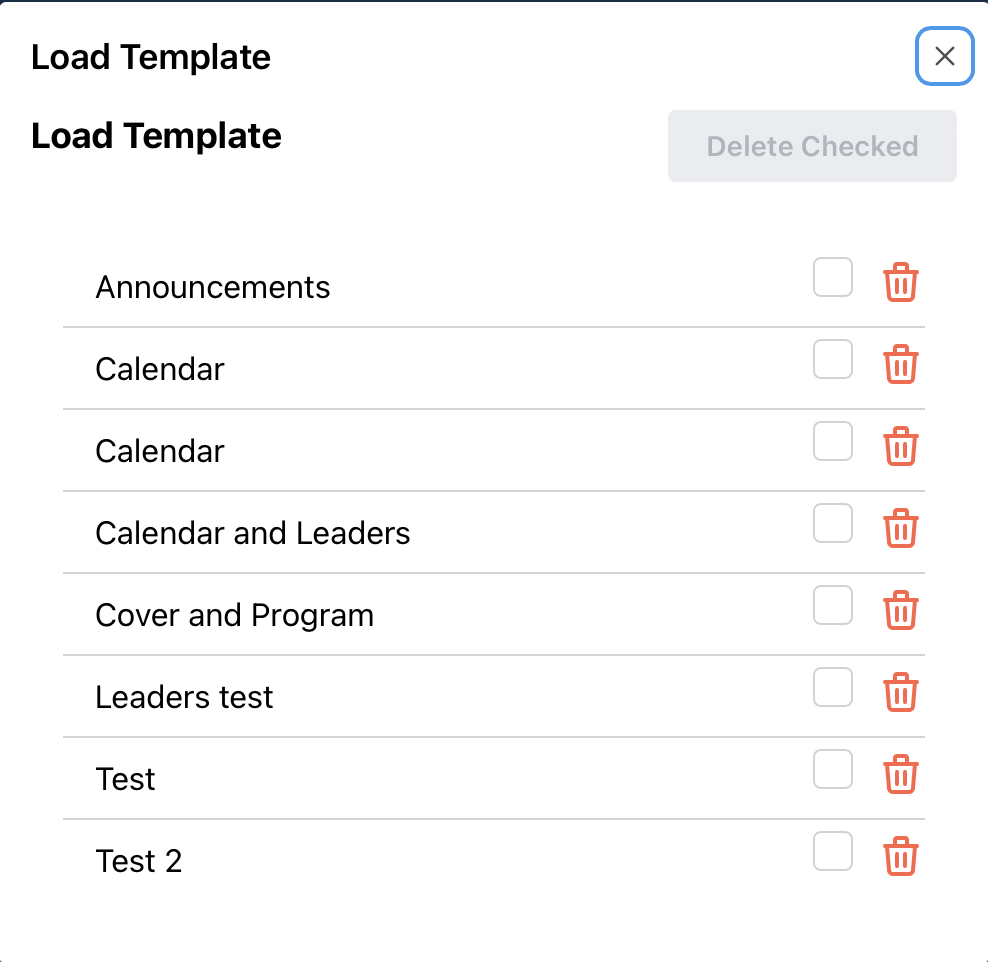
Select the template you want to load.
You can also use this screen to delete templates you no longer need. Click on the checkmark or trash can to select for deletion, then click on the Delete Checked button.
Save Template
Select Save Template to save a template. Provide a template name, then select one or more sections to include in the template. Then click on the Save Template button.
Create QR Code
You can create a poster with a QR code linking to the ward bulletin to help people find the bulletin. To do that, select Create QR Code.
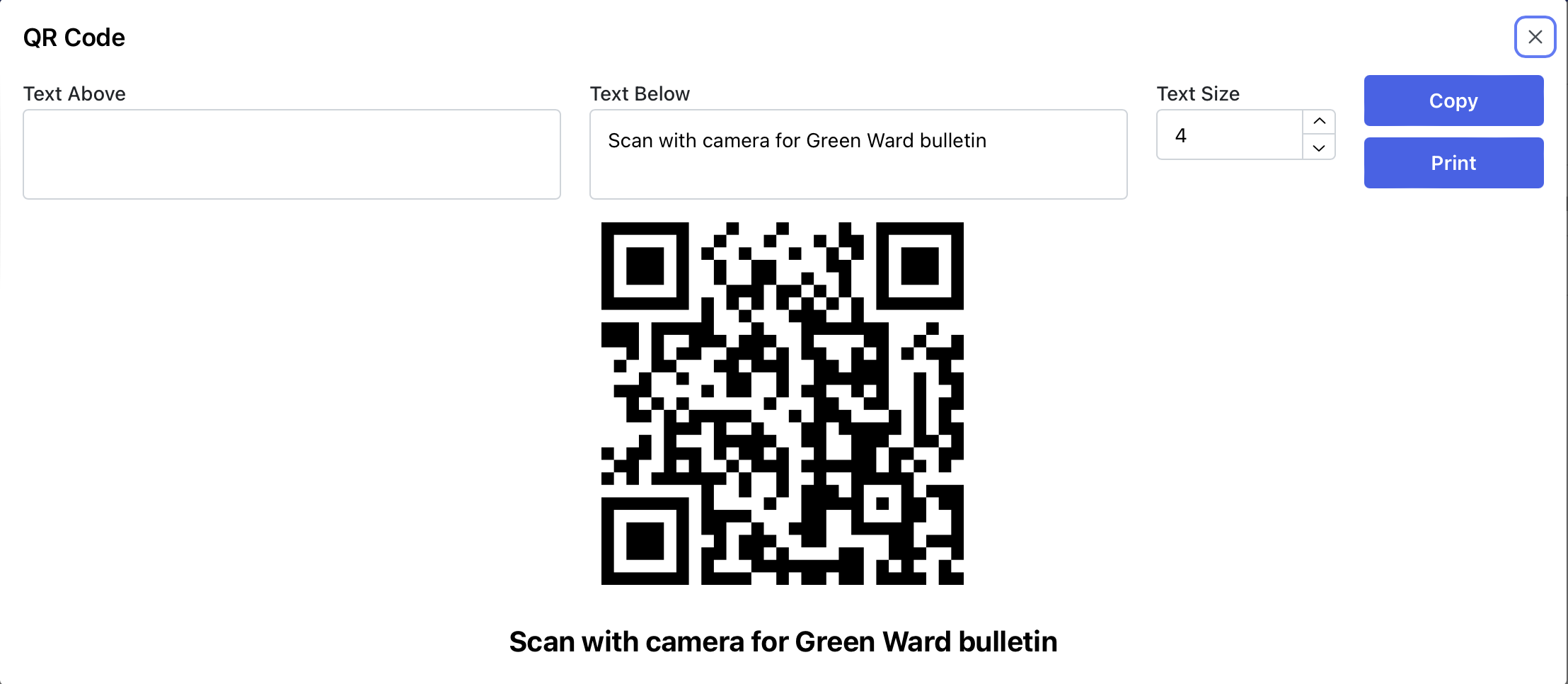
You can add text above or below the QR code and adjust the text size. Click Copy to copy the QR code and text to the clipboard. You can then paste it into a word processing or image editing document. Click Print to print the QR code.
Account
Use this to add or remove other editors for your ward bulletin.
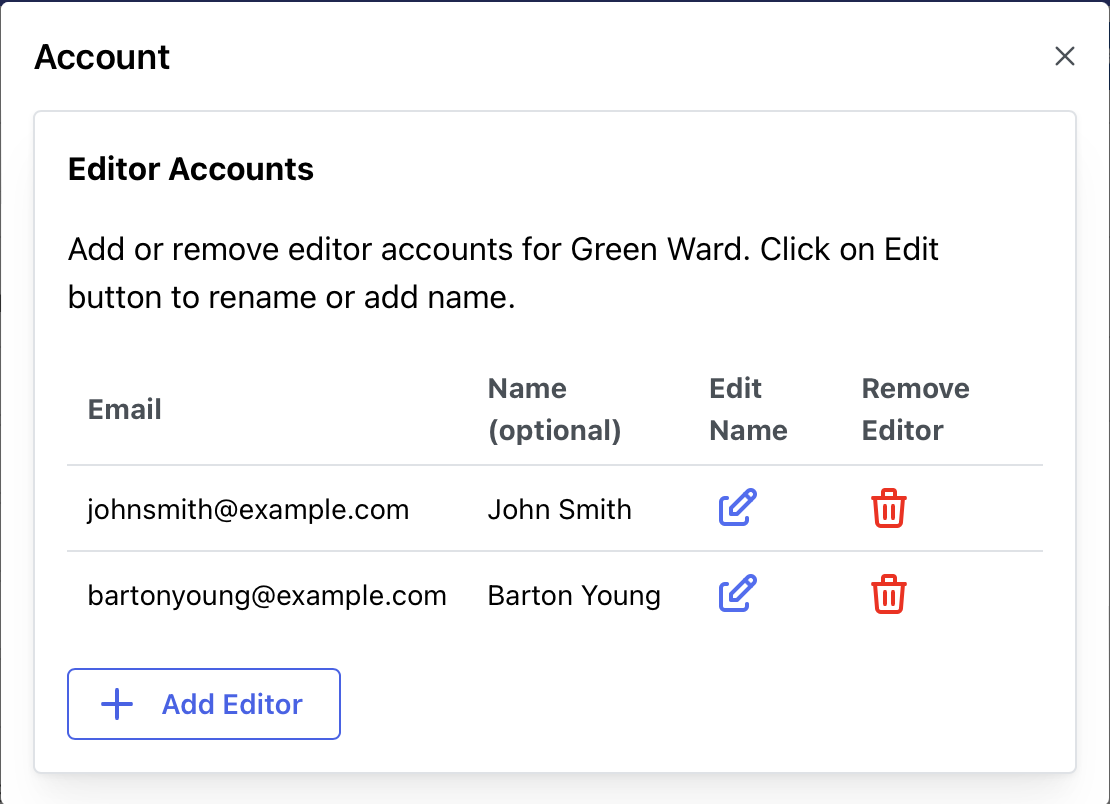
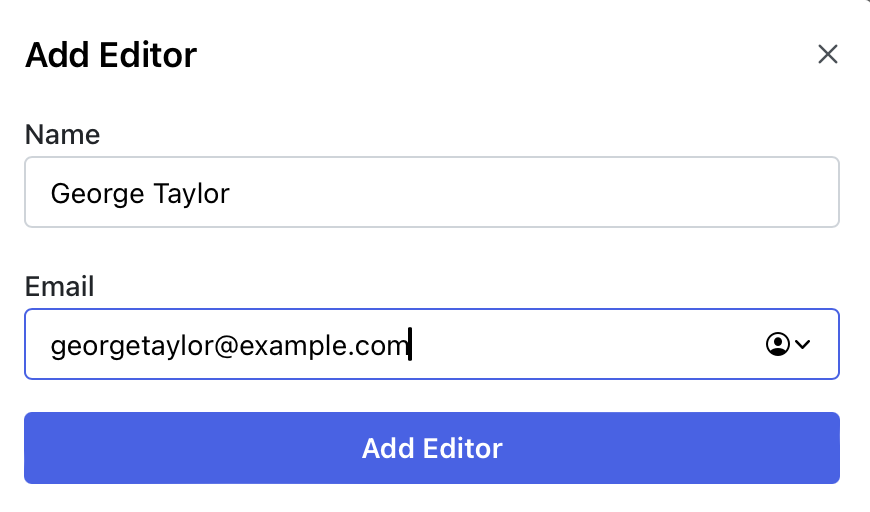
Click the Add Editor button to add another editor account to this ward bulletin.
Click on the pencil icon to change the name of an editor.
Click on the red trash can icon to remove an editor account. You cannot remove the last editor account.
Log Out
Use this to log out of your account. This may be necessary if you are using multiple bulletin accounts.